Overrides
Audio and Print overrides are very useful for cases where there are words that are difficult to pronounce or something should be more concise. Both of these cases are very simple to address, read on below for more information.
Once you've recognized there is a word or phrase that is pronounced incorrectly or contains too much information, navigate to the advanced options section of the item you are addressing and open up the Label 1 or Label 2 section of those options. You should see the options for audio and print overrides.
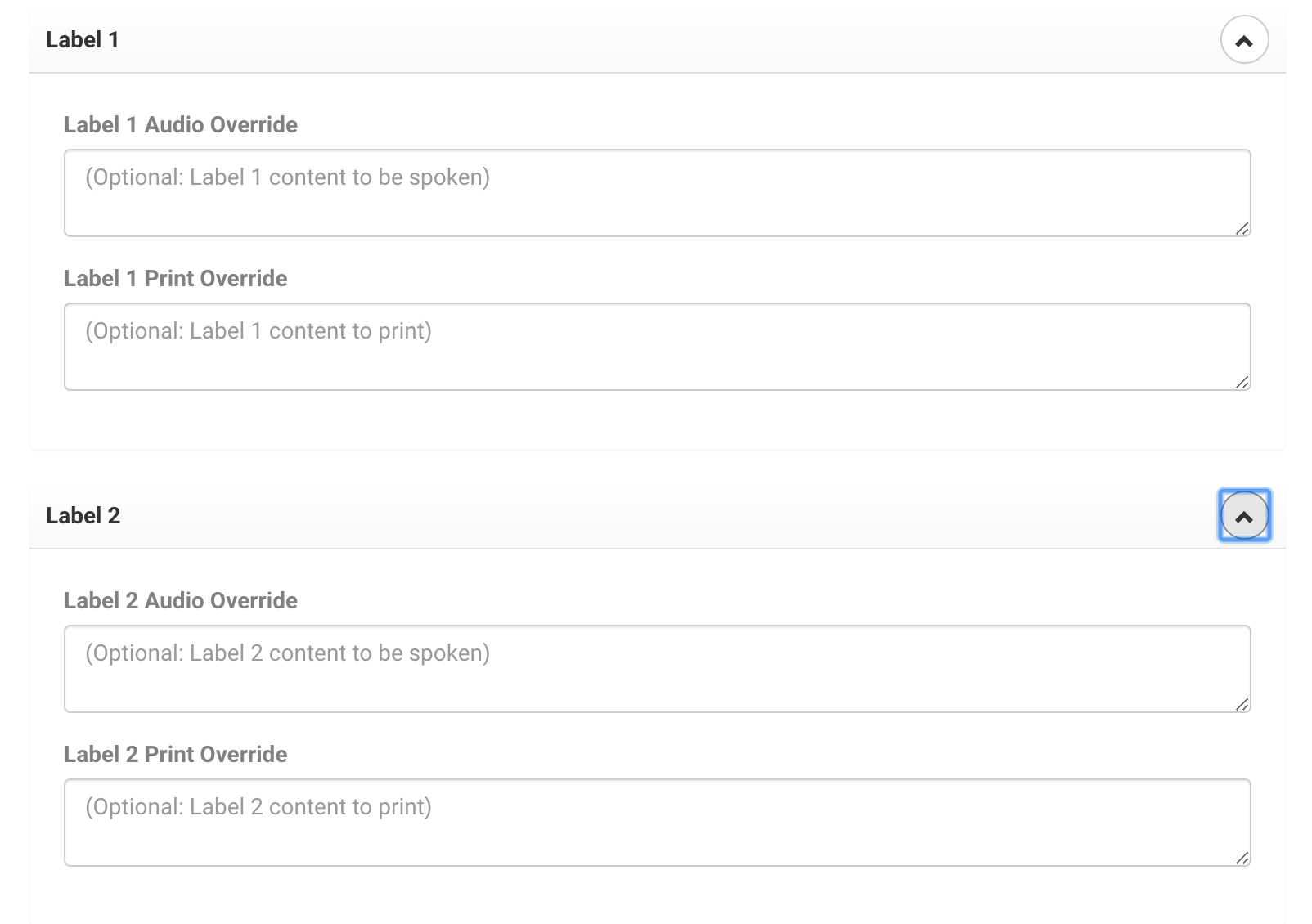
First, you should copy the text you had from Label 1 into the Label 1 audio override section. Then, adjust for pronunciation using either the phonetic spelling or for numbers, separate them. Here are some example cases in which you would override Audio
Audio Override Examples
| Label | Pronunciation | Override | New Pronunciation |
|---|---|---|---|
| Item #12723 | "Item number twelve thousand seven hundred twenty three" | Item # 1 2 7 2 3 | "Item number one two seven two three" |
| I already read that | "I already REED that" | I already red that | "I already red that" |
| Here at the LPAC | "Here at the el-pack" | Here at the L P A C | Here at the EL P AY SEE |
Often times the only cases where you would use an audio override are for acronyms, numbers, or difficult words to pronounce.