How do I quickly style the colors of entire activity?
There are two main ways to go about styling the whole activity.
Template Generator
The easiest and quickest way is to use the
Template Generator under Activity->Styling->Stylesheet.
Click the Template Generator button to open up the color selectors.
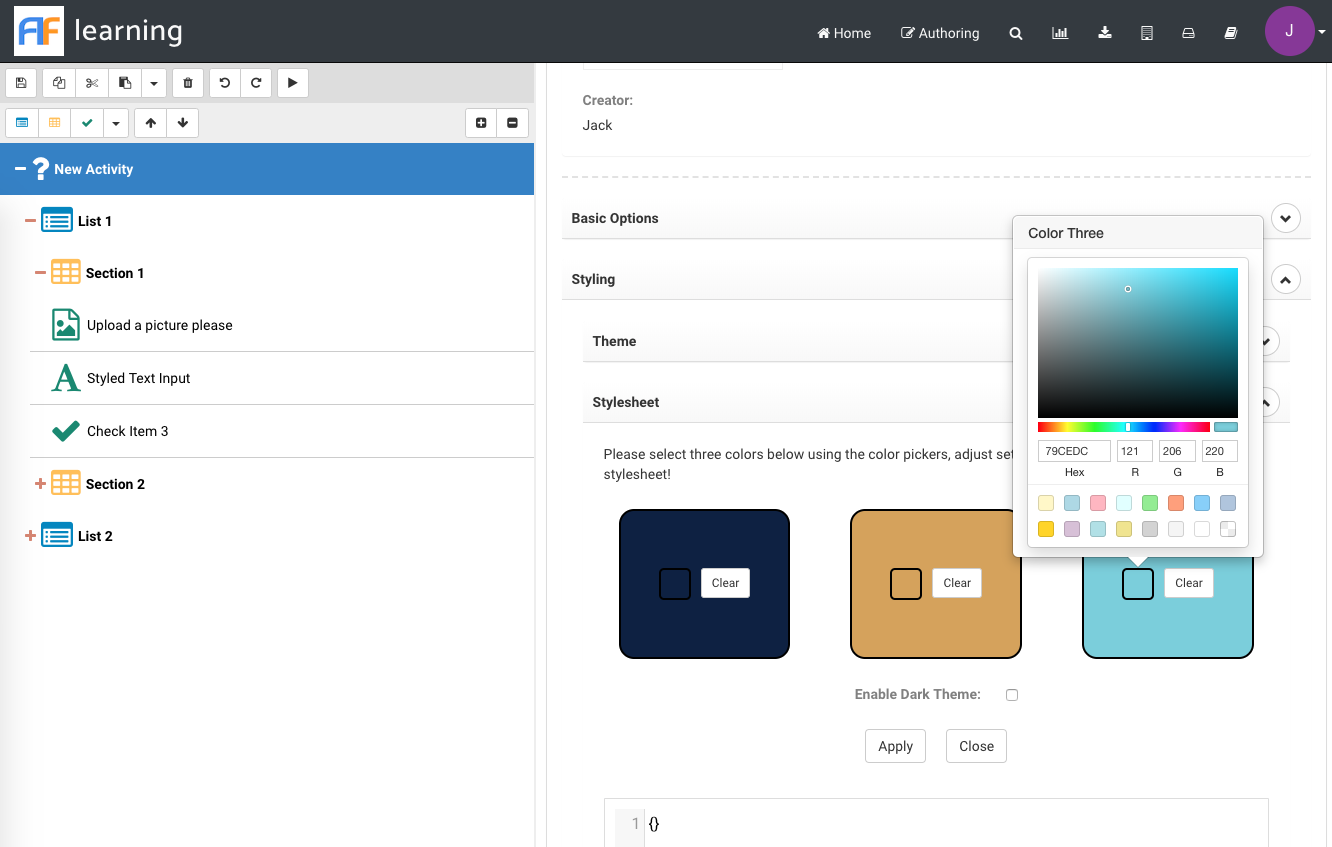
Select 3 colors related to your brand or company, and the stylesheet will be generated automatically. There are two different configurations for the generator, dark or light. The dark theme takes the darkest color and makes it the background, light makes the lightest color the background. An example of the light and dark stylesheets generated is show below.
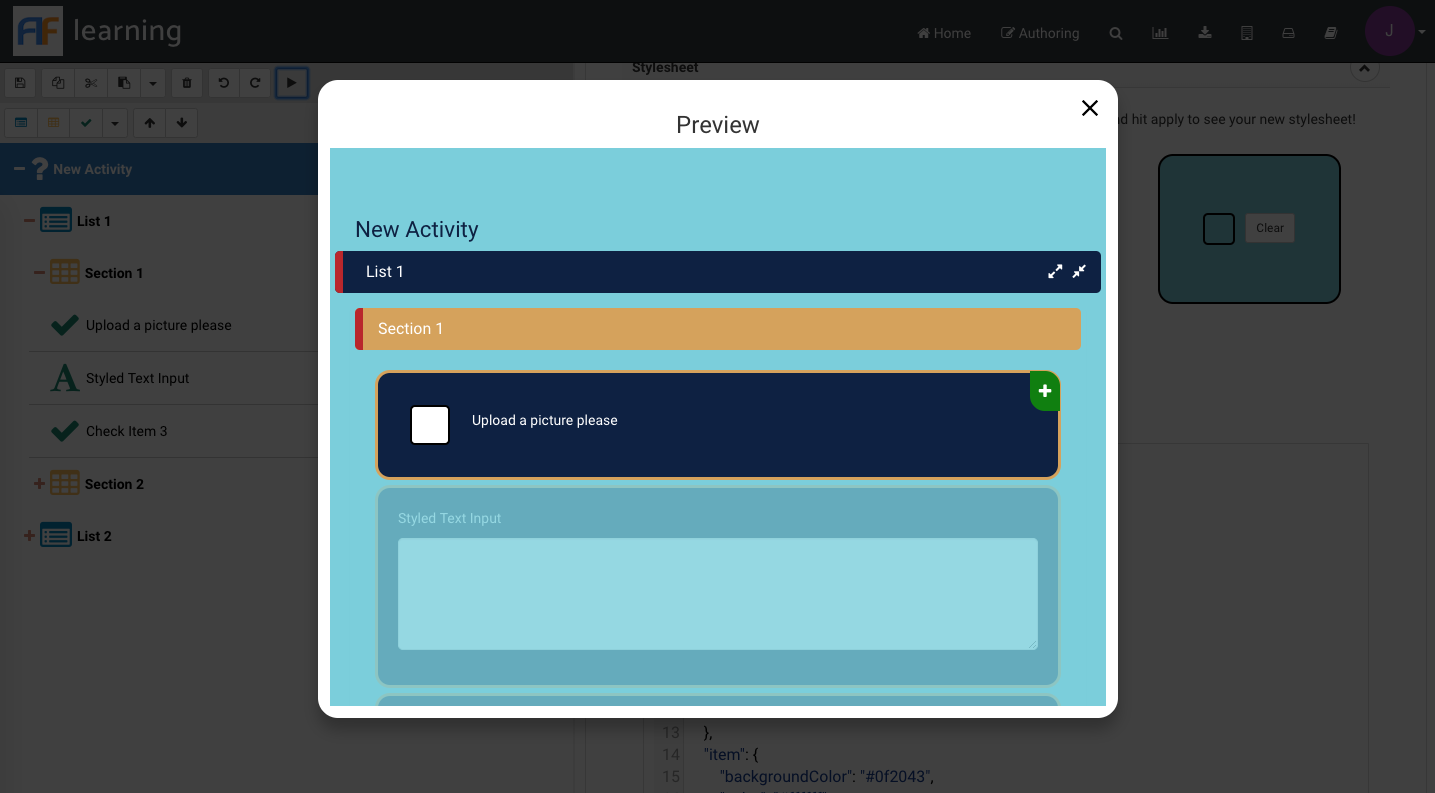
Light Stylesheet
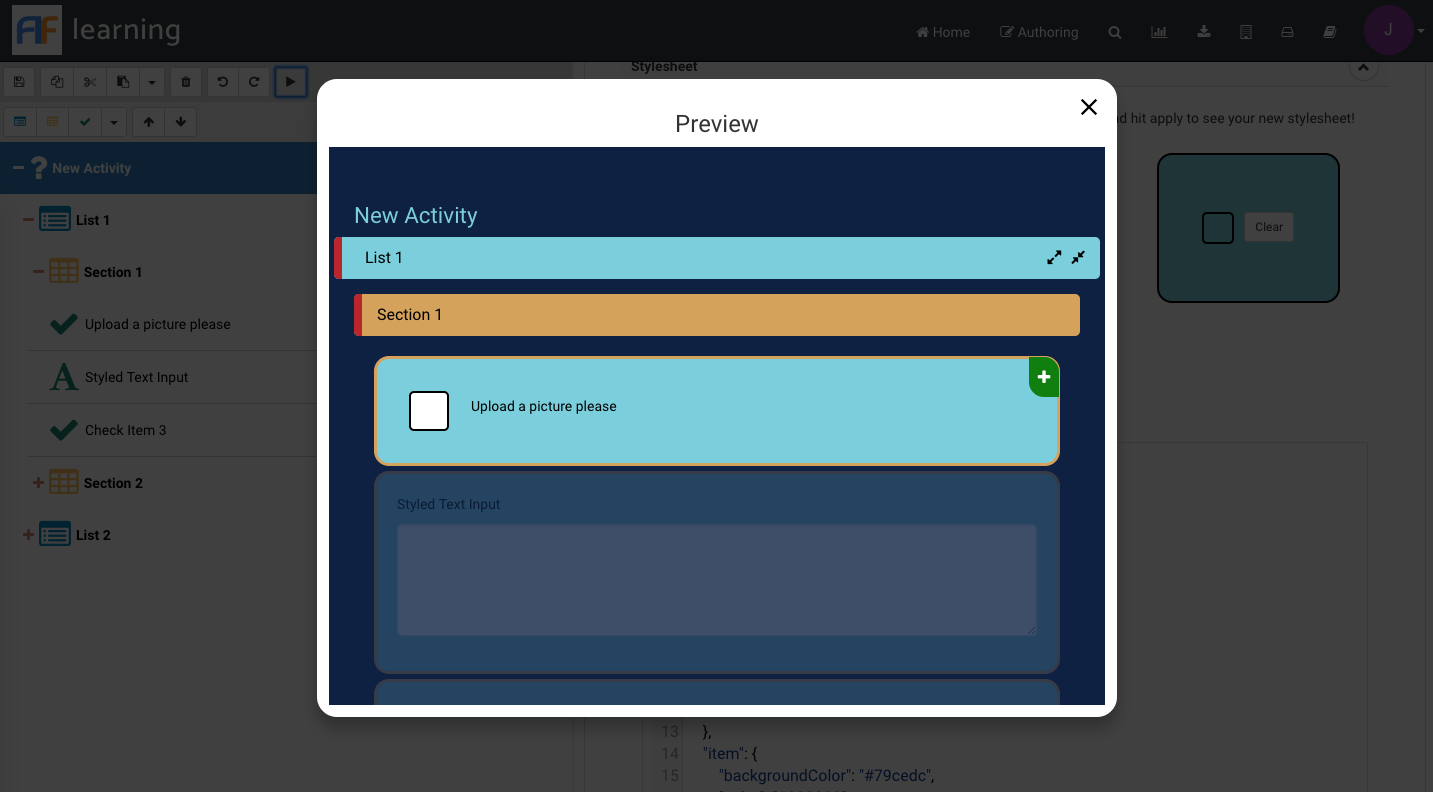
Dark Stylesheet
The template generator does what the name suggests, creates a barebones template. The code can be changed below in the editor, and style elements can be added or changed without being affected by the generator. If a new stylesheet is applied, new variables and style selectors will not be overwritten.
Hard Coding
If you do not wish to use the generator, the base template for the stylesheet can be copied from below and tailored to your liking. The preview feature in the editor can be used to quickly see the effect of your changes on the Activity style!
{
    "activity": {
        "backgroundColor": "#f0ad4e",
        "color": "white"
    },
    "list": {
        "color": "white",
        "fontSize": 26,
        "backgroundColor": "#0275d8"
    },
    "section": {
        "color": "#0275d8",
        "fontSize": 22,
        "backgroundColor": "white"
    },
    "item": {
        "color": "#0275d8",
        "fontSize": 18,
        "backgroundColor": "white",
        "borderColor": "#0275d8",
        "borderWidth": 5,
        "borderRadius": 10
    }
}